Windows 8 Consumer preview is released yesterday for the public, the most hyped Windows operating system so far. If you want to try the operating system you can either install it on a spare system if you have one, or load on something like Virtual Box. Another option is to dual-boot the system with Windows 7, this way you can test Windows 8 and if you like later you can upgrade or do a clean install.
Things are not that difficult to dual boot windows system all you need is the ISO file of the Windows 8 consumer preview, a new partition on your system and an USB drive or DVD for writing files to it.
First and foremost thing you have to do is backup all your important data before doing anything.
Create a new partition
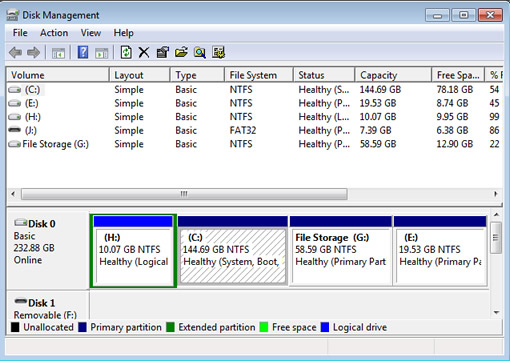
You need at least 20GB of free space to install Windows 8, so make some space in system drives, If you are on a laptop and have only one drive, you have to create a partition. Hit the start button and type partition, select “Create and format hard disk partitionsâ€, it will open windows disk management tool. Now allocate 20GB or more space and format the new partition. If you have only one drive, right click on the drive and select shrink volume. After shrinking you should have at least 20GB space, select the amount of space and click Ok. Now right click on the unallocated space and click New Simple Volume. follow the instructions until you get Format Partition window, give it name and format. Now we are ready to install Windows 8 Consumer Preview.
Preparing bootable USB drive or DVD.
Now you already have the Windows 8 Consumer preview iso file, if not download it. I am using a 4GB USB drive here, you can use a DVD also to create a bootable disk. For writing to DVD use Windows 8 burn function or use something like ImgBurn software.
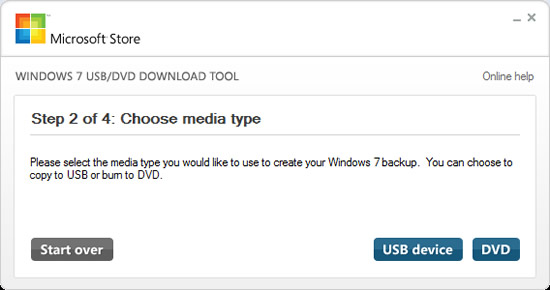
To use USB for installation you need a tool that can make the iso bootable, download this utility from Microsoft and install it. Open the tool and show the ISO image, on the next screen select USB, it will do the rest.
Installing Windows 8
Now reboot your system, based on your system at the boot time you should press F2 or other key to enter to BIOS. In the BIOS boot device options select to boot from USB drive, it may be different depending on the system, for my Sony VAIO it is “External Deviceâ€.
Now Windows 8 setup will load, follow the instructions, select the language of the installation and continue. The instructions are self explanatory. When it shows the screen of “What type of installation you wantâ€, select custom and follow.
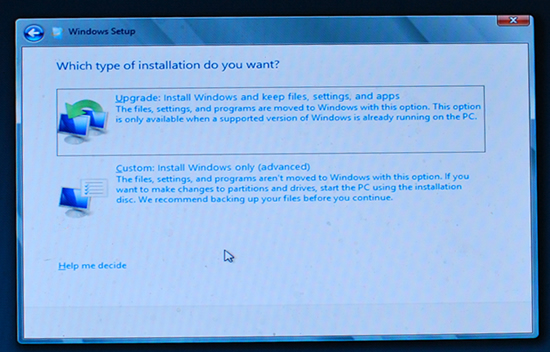
Select the new partition you made and continue to install windows.
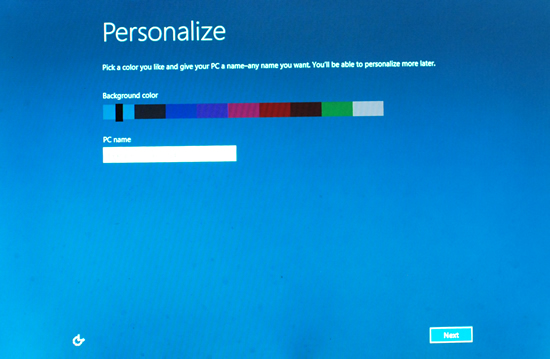
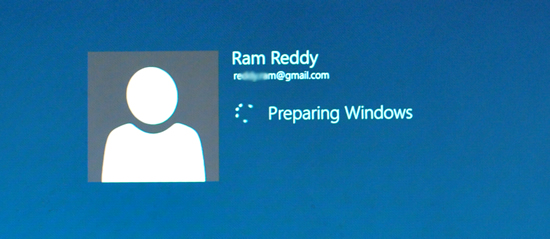
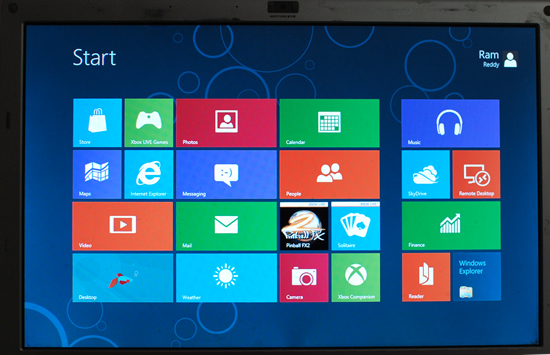
System will reboot few times and will finish the installation. In the process you can personalize the system by choosing name, settings etc. Finally when it is finished you will see the Metro style start screen.
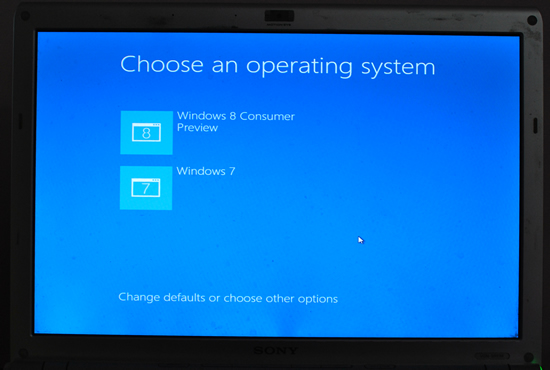
After installing you can change the boot menu default, If you want to use Windows 8 regularly you can keep the boot menu default as Windows 8 CP. if you want to change it will show boot menu at the startup, there is a link at the bottom of the screen “change defaults or choose other options†using this you can set default as Windows 7.
That’s all, now start exploring Windows 8.


Once you do this can you go back to using just normal Windows 7?
Yes, that is the point. After installing you can change the boot menu and set Windows 7 as default, that way you normally boot to Win 7 and when you want you can go to Win 8.
Ah. This is good to hear. The only problem I have now is finding a spare USB/DVD. Once installed you no longer need the USB/DVD?
I have also seen in other places that you can use DaemonTools to create a virtual drive with the .iso mounted on it and install from that?
Dear in case of windows installation deamon tools doesn’t work because the pc goes t orestart several times during installation when pc restarts the mounted image file shall be removed itself from the artificial drive…
I’ve installed Windows using a virtual cd drive before. Once Windows has loaded from the iso using the virtual drive, it has all the files it needs to install.