Web browsers cache content on the client machine to speedup the browsing experience. When users try to reload web pages they accessed before, cached content helps the site to load faster. All browsers including IE, Firefox and Google Chrome use caching method.
A typical browser cache include images, documents, videos, etc., that are stored in Cache folders. Google Chrome stores the web cache in the below folder in Windows 7.
C:\Users\{username}\AppData\Local\Google\Chrome\User Data\Default\Cache
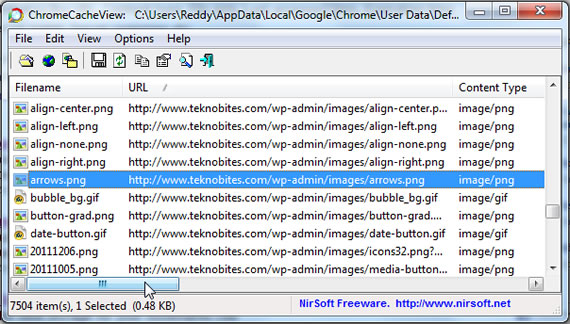
You can access the Google Chrome cache contents from the above folder. If you want to see what is stored in the Chrome cache and want to extract those files to your hard drive. You can use this small utility from NirSoft called Google Chrome Cache View.
Google Chrome Cache View
This is a portable application meaning you can just open the application from any folder. It will immediately see the list of files stored in Cache. For each cache file, the following information is displayed: URL, Content type, File size, Last accessed time, Expiration time, Server name, Server response, and more. You can select one or more files from the list and choose to export the list as txt or xml file. The file contains all the details about the file including the URL. If you want to copy or extract one or more files from the cache folder to another folder on your system, you can use the “Copy Selected Files To” from the file menu of the application or press shortcut F4. The selected files are copied to another folder this way.
How to disable Google Chrome Cache
If you are testing a new web design or modifying the existing design Cache can sometime can come into way. Because of the cached version if you are not able to see the updated version you can disable cache in Google Chrome.
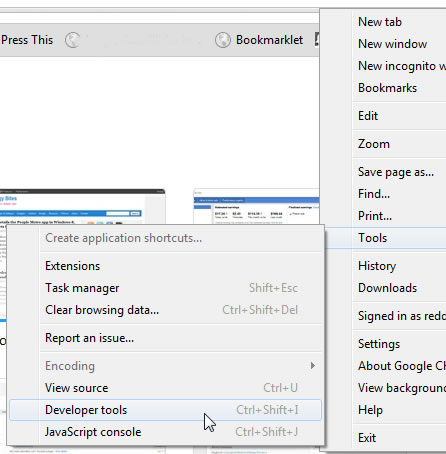
Open Developer tools, go to Wrench menu, tools, select developer tools.
Now the console will open. Click on the settings button at the right bottom corner of the browser.
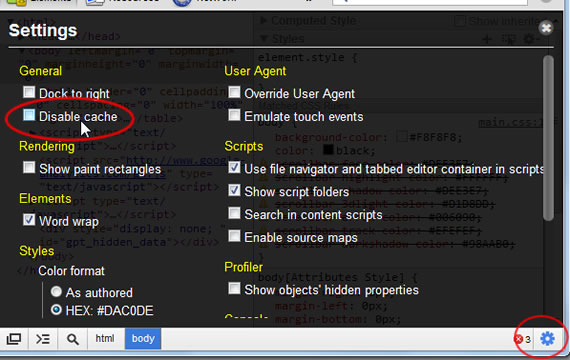
Enable the Disable Cache button to disable the cache.

