After upgrading to the Windows 8, I am not able to run Apache with XAMPP server. The culprit is that Windows 8 is using Port 80, if you look at the TCP connections you will realize that NT Kernel & System process is listening to Port 80.
Obviously you can’t stop System process unless you know what that process is. One work around to run Apache in XAMPP server is by specifying an alternate port in Apache config.
How to change the port in Apache Config
To change the Apache config in XAMPP follow the below steps.
Open C:\xampp\apache\conf, find the httpd.conf file and open with notepad (do not use Word for opening this file). Look for these lines and change 80 in the last line any other port, for example 8080.
[shell]#Listen 0.0.0.0:80
#Listen [::]:80
Listen 80[/shell]
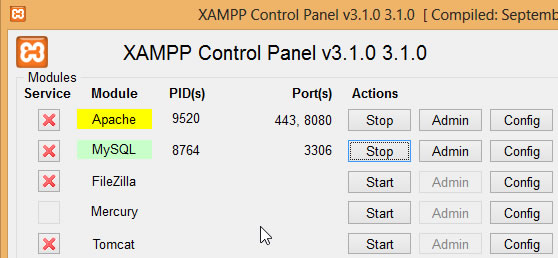
This way we will be able to run Apache but the http://localhost/url won’t work for that you need to append port number into the URL. For example if you specify Port 8080 in Apache config, you have to specify the URL like this, http://localhost:8080/url.
Another method is to find the service that is using port 80 in Windows 8 and stop the service.
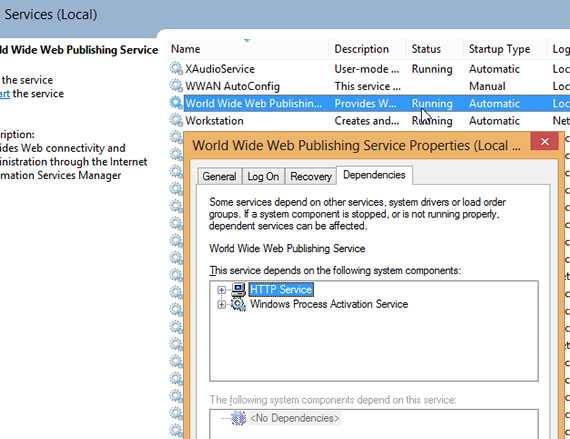
In Windows 8 “World Wide Publishing Service is using this port and stopping this service will free the port 80 and you can connect Apache using this port. To stop the service go to the “Task manager –> Services tab”, right click the “World Wide Publishing Service” and stop.
To see which process is using port 80, follow these notes
Win+Run and enter “cmd” with out quotes and press enter. In the command prompt enter
[shell]netstat –aon[/shell]
Now see the what service is using port 80 and note down the PID and search for the service.
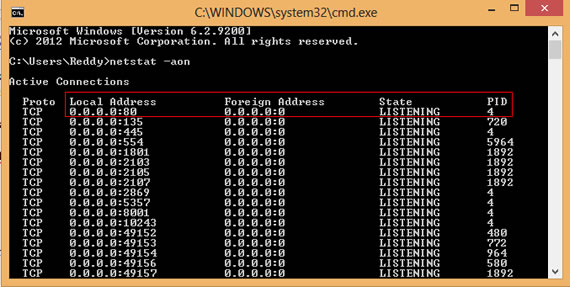


> netstat -aon | find “LISTENING”
It is better 🙂