Dropbox is increasing security of user accounts by introducing 2-step verification system for all Dropbox account holders. 2-step verification adds an extra layer of security to your account, using this method you need to enter a security code along with your username / email and password.
If you have already used Google 2-step verification then this looks familiar, if not you can enable 2-step verification easily in your Dropbox account to increase security. 2-step verification might look cumbersome while logging in but it adds an extra layer of security, so it is advisable to add this security measure to your account, important if you store sensitive documents in your Dropbox folders.
How to add 2-step verification to your Dropbox account
1. Download the latest Beta of Dropbox desktop client.
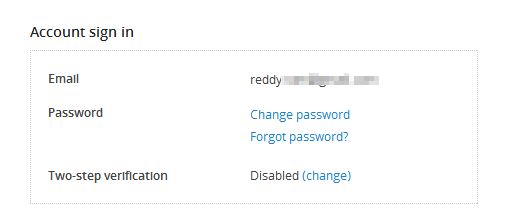
2. Go to http://www.dropbox.com/try_twofactor and enable “Two-step verification” from Account sign in section.
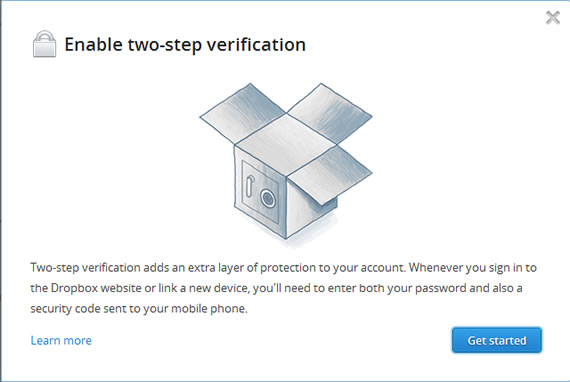
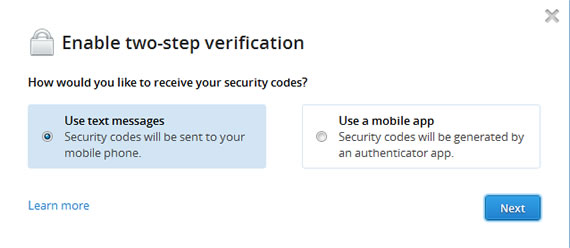
3. Click get started in the pop-up window and select the authentication process. Two options are available, first one will send security codes as text messages to your mobile phone. The second option will generate security codes using an authenticator app (Google Authenticator app).
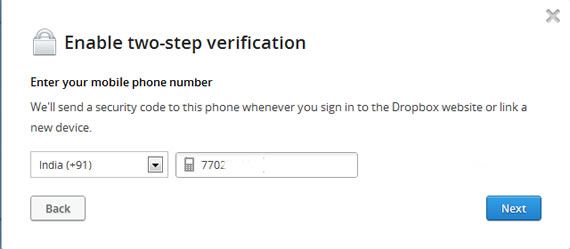
4. I have selected text messages. If you select this option, you will receive a message with security code immediately. (Dropbox supports international numbers). Enter your mobile number in the next step.
5. Enter the 6-digit code you received on your mobile phone.
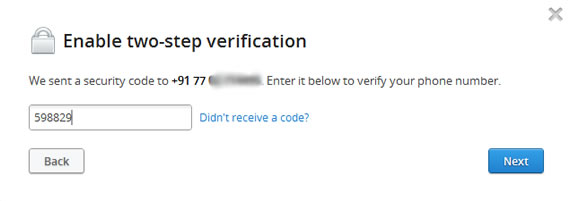
6. Now you will get an emergency backup code to disable two-step verification incase you lose your phone and you can’t receive text messages. Keep this backup code safely for future use.
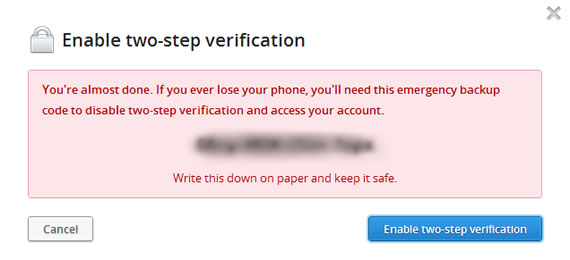
7. You have now enabled Dropbox 2-step verification method. From now on whenever you try to login to your Dropbox you will need to enter the security code to get access to Dropbox.
If you are using Dropbox on your iPhone or Android unlink your Dropbox account and try to re login to the app to activate the 2-step verification on your phone.
Via Dropbox

