Screengrab is a Firefox Add-on that is useful for taking web pages as images. It is very useful for bloggers who post screenshots of web pages in posts.
Once you install the extension it adds a small icon in the browser status bar and a link in the right click context menu. You can save or copy webpages as images using screengrab, in either case three options are available complete page/portion, selection or visible portion. Images can be saved as either PNG or JPG.
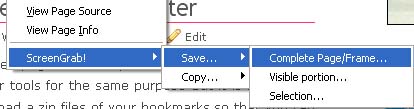
Supports Firefox 2x and 3x, Download Screengrab


I started using it an year ago, and it has now become an essential add-on for my Firefox. I use it very often.
Online image editing tool Picnik also provides a Firefox addon with which you can capture web page and then edit it using picnik.
I’ve been using it for a long time.
With screengrab now i can directly save screenshots to my pc. Great finding!!
Been using this plugin for quite some time know. Really awesome to show clients what website look like as images. Prt Scr is no more for web pages. Would be cool if there was a tool like this for whatever is on the screen.
How can you take pictures with this using Mozilla Firefox? I installed this add-on just now but I dunno what to do with it and how to use it. Could someone please teach me how to do it in Firefox? I guess the tutorial here was just for IE users.
@jeana
The tutorial here is for Firefox.
After installing restart firefox, now right click with your mouse, you will see screengrab in the menu with that you can save web pages as images. see the picture in the post.
when I right click and press screen grab and I choose save where can I find it on my PC. :'(