Shared hosting is good in the initial stages of your blog, but once your blog’s traffic increases to few thousand visitors a day you should really move to a better hosting plan probably a VPS or a dedicated server. Dedicated servers cost you a lot of money and you really don’t need one if you are only hosting a WordPress blog. The trick is to optimized WordPress using cache plugins and by adding a CDN to run on a VPS. Dedicated Virtual Servers are a good choice for many medium sized blogs as they don’t cost you that much and are easy to maintain relatively.
Earlier my blog was hosted on MediaTemple DV server, i am happy with MT but due to some issues i have moved from there to Linode recently. I researched several hosting providers, I already experienced worst hosts like Dreamhost, so this time I want a better option. Finally I have selected Linode and moved my sites to Linode servers.
Linode pricing of VPS servers is good, they offer value for money services and they have good reputation for quick support. Provisioned a server with Ubuntu, Apache, MySQL and PHP. Installed APC and Varnish for performance gains, more on that later.
Here i will document on how to setup dedicated VPS server with Linode. This guide will help me to serve as a reference in the future, and may be it is useful for you people also.
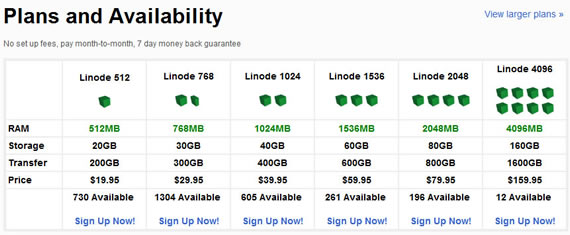
Linode offers flexible plans, decide which is best for you depending on your blog or site visitors and page views per day. I went with Linode 512 (now on Linode 1GB as Linode upgraded for free all their customers to 1GB plan) which is enough if you get few thousand visitors a day. While signing up you can select on which Linode data center you want to host your site. Select a data center that is closest to your visitors.
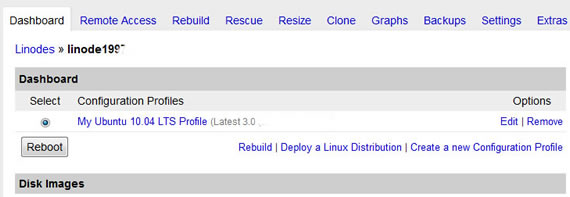
You have to select a Linux distribution for your server, there are several distributions available from which you can choose one. I have selected Ubuntu 10.04 LTS 12.04. Enter a strong root password, this you will use to login to your server via ssh. Now rebuild the system, it takes not more than few minutes. After completing that click boot button to start the server. The server provisioning process pretty quick.
Now you can login to your server using root password you setup in the process. You can find the IP address of your server in the Remote Access tab of Linode Manager. You can use PuTTY to login to your server from Windows system.
Set Host Name
Login to your server using Putty, the firs thing you should do is set the hostname for your server. The hostname has to be unique and you can choose whatever you want to name it, it doesn’t have any relation to your domains.
To set the hostname enter these commands in shell. Replace teknobites with the hostname of your choice.
[shell]echo “teknobites” > /etc/hostname
hostname –F /etc/hostname[/shell]
Update /etc/hosts
update /etc/hosts file to reflect the changes. Open /etc/hosts with a text editor like vi or nano.
[shell]nano /etc/hosts[/shell]
Change 11.22.33.44 with your server IP address and “teknobites” with your host name and doamin name with your domain name.
[shell]127.0.0.1 localhost.localdomain localhost
11.22.33.44 teknobites.domain.com teknobites[/shell]
Software Updates
Check your server needs any software updates, use these commands to update
[shell]apt-get update
apt-get upgrade –show-upgraded[/shell]
The next step is to secure your server by generating ssh keys, adding iptables, disabling root login etc.
Overall the experience with Linode is better and i have never has any issues with them. Linode has an excellent documentation which you can use if you are new to dedicated VPS.
Other articles in this series
Installing Apache webserver on Ubuntu VPS
How to install PHP and APC on Ubuntu VPS
Useful .htaccess tips and tricks

